How to restore the original card visual
Welcome to our quick post / video about how to get the original Power BI card visual BACK into Power BI.
I posted about this quickly on LinkedIn, but thought I should also make it a post here for you, because I find the Card Visual incredibly useful, and Microsoft has basically hidden it.
Video Instructions:
Written Instructions:
In the November 2025 update of Power BI Desktop, Microsoft has changed some of the settings so that we no longer have our card visual in our visualization choices in the visualizations pane.

We’ve got the new card visual, which is, for lack of a better word, a more complicated card visual.

It can do a lot more things than the old card visual… you can bring in pictures, and you can do all kinds of formatting.
But the original one has its charms because it’s nice and simple.
If you’re trying to show a certain number, a certain metric, a certain KPI, with just one simple number, you don’t need all that more complicated formatting and the different features.
So the old card visual has its charms, but we don’t have it anymore in the visualizations pane. Here’s what it looked like when it WAS in the Visualizations Pane:

(just like the “New” one, but without the little lightning icon)
Now the way to solve this is if you still want to use the old card visual is to think about the visualizations pane as a collection of visuals, which it is.
But Microsoft, by default, changes what visuals are “pinned” to the visualizations pane.
So you can see here, I’ve got some extra ones here that are pinned to my visualizations pane that doesn’t come with Power BI Desktop out-of-the-box.
What Microsoft has done is it has UNpinned the old card visual but left in the new card visual.
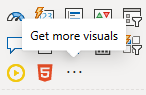
So the way to get the old card visual back in your Power BI desktop, or more accurately “pinned” to have it showing up in the Visualizations Pane is you’re going to go to those 3 little dots right here where it says “Get more visuals“:
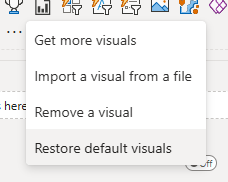
And then you’re going to click on “Restore default visuals“.
We then get a little message asking if we were sure we want to do this.
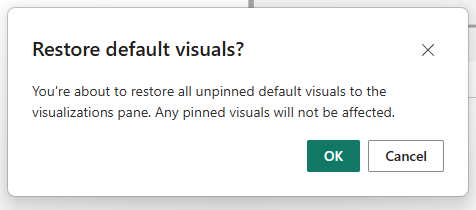
We want to do this.
Now we have the original card visual back on our visualization pane.

We still have the new one, and you can “unpin” this visual or any other visual just by right-clicking on it and selecting “Unpin this visual“. So if there’s a visual you NEVER use, you can clean up your Visualization Pane… but now you know how to get those visuals back if you need them.
Take care everyone,
Joe.
More “Hot Tip” posts:
More posts about Power BI Admin:
Like these posts but need more formal (but still engaging and fun) training in Power BI? Contact me, Joe Travers or at joe@traversdata.com. I got you.

Contact Joe | TraversData.com | People-Friendly Power BI | LinkedIn